
STEP 3 - Branding ready to be delivered
You're branding is ready to be delivered it's time to book your branding delivery call.This is how to prepare and what to expect for your BRANDING-DELIVERY CALL.
1. Your New UGC portfolio → That needs to replace your old one
2. Your new branding assets

Check List
[ For your branding delivery 🎉 ]
📧 Email Signature
Email/Gmail Signature is updated - ready for new photo
Have Google Drive Folder Ready for your photo
🐦 Twitter Prep
Signed up for Twitter
we have your banner, profile photo, bio and preview card ready
START TWEETING! You need 2 weeks of Tweets before starting autopilot
⭐️ 10-minutes before meeting
Old Canva portfolio is unpublished
How to unpublish on Canva
Please have open on the call
[ We only have 60-minutes for branding delivery & autopilot launch ]
💻 Please have open on your web browser
Chrome preferred → best works for Canva Delivery
Email Inbox
Canva
Twitter (logged in)
👏 Ready to book your call?
Use the same details from your the email "🎉 CBA Branding is ready - book branding delivery call"
so we can match your account → You must book your branding delivery with your exact details
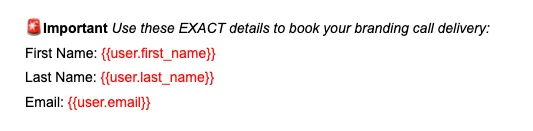
We can't wait to see your reaction to your new brand.
After you've booked your call start prepping for Autopilot in Part #4 ⬇️

Step 1
Pre-onboarding
Meeting
Must complete this step
before your on-boarding meeting
Week 1
Step 2
Branding Homework
& Coursework
After your on-boarding call you can start! Must complete before booking branding-delivery call.
(we're building your portfolio during this time)
Week 2-3

Step 3
Branding-Delivery ready
Your branding is complete, you'll receive and email to book your call. Here's how to prep for your call.
Week 3/4 (Mandatory)

Step 4
Autopilot
Complete all pre-autopilot homework prior to joining Autopilot Channel. After the call your CSM will reach out to you to get-started.
Week 4

Have Questions?
We recommend googling your tech problem first & using ChatGPT
Go to our FAQ page and see if your question has been answered
If it has not, ask your question in the FAQ page and we will respond within 72 hours
If you're still having problems you may book a call with our team.